
SMART Conference Help
Q
On-site Check-in Process
This section explains the on-site check-in process.
1.Access the login page
Scan the QR code below or click the text link “SMART Conference User Login Page” to go to the login screen.
Enter the email address and password you set during registration to log in.
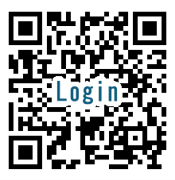
SMART Conference User Login Page
<Login Page>
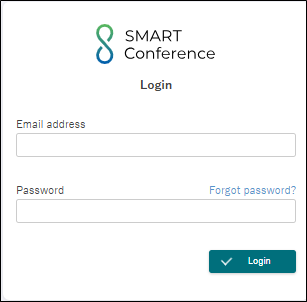
*If you forgot your password, please click here for the reset guideline.
2.Select the conference name
After logging in, select the name of the conference you are attending.
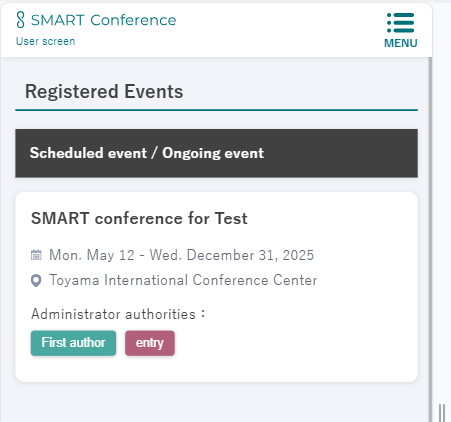
3.Display the participant check-in QR code
At the reception desk, you will need to present the QR code for check-in.
▶If you are using a mobile phone to present the QR code.
Click the MENU on the upper right corner and then click the yellow “QR Code for Check-in” button in the upper right corner.
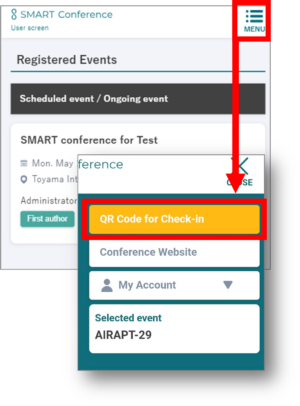
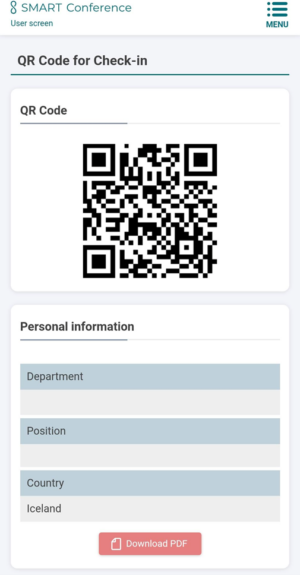
*The QR code can also be downloaded as a PDF, allowing you to print it in advance and bring it to the venue. Scroll to the bottom of the QR code page, and click the pink button labeled “Download PDF.”
▶If you are using a laptop PC to present the QR code.
Click the yellow “QR Code for Check-in” button located at the top right of the screen.
*The QR code can also be downloaded as a PDF, allowing you to print it in advance and bring it to the venue. Scroll to the bottom of the QR code page, and click the pink button labeled “Download PDF.”
4.Scan the QR code
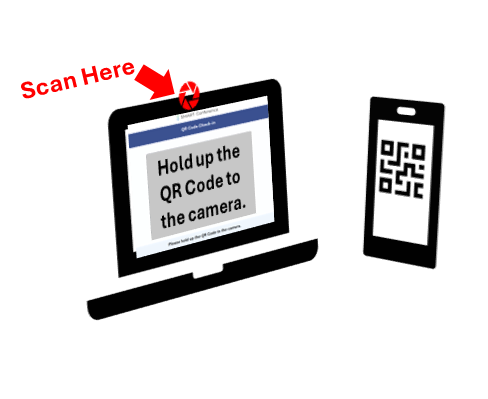
A QR code scanning PC will be available at the registration desk.
Please display your QR code on the screen for scanning. Once the QR code is scanned, the name card will be printed automatically.
5.Important Notes
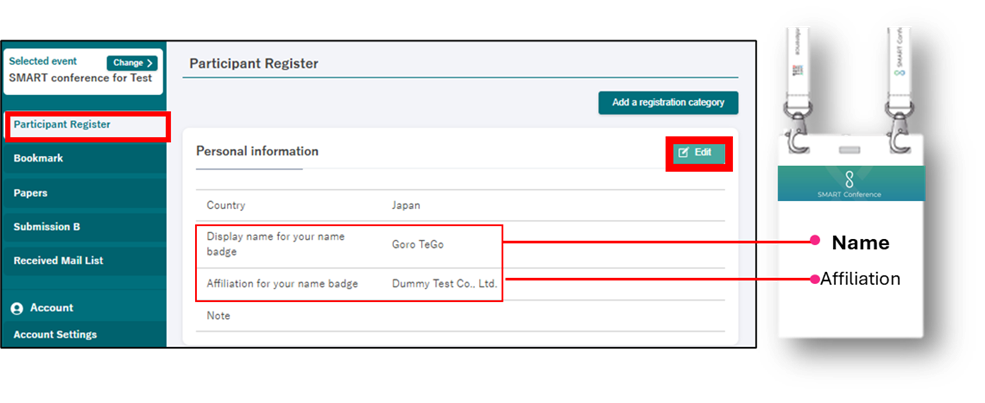
・We kindly ask you to review your display name and affiliation and make any necessary updates before arriving at the venue. If you need to make corrections, please follow the steps below to update your information.
▶Display Name Change Guideline
Click on“Participant Register” in the left-hand menu.
Check the display name and the affiliation on this page.
To make corrections, click on “Edit” in the upper right corner.
Please note that there is a character limit for printing, make sure your inputs are within 20 characters.
・If the “QR Code for Check-in” is not showing: Your payment may not have been completed. Please check your payment status from the “Participant Register” page
For customers who wish to contact us
Various support services that answer customer questions, such as inquiries
about operation methods and inquiries about product introduction.
I will guide you.